Introduction
Fiat attributes allow you to customize various aspects of the GUI for function nodes, dataclasses, and pydantic models. They provide a powerful way to modify the appearance and behavior of function parameters and outputs, adjust the GUI for dataclasses, control how function nodes run (e.g., asynchronously or manually), set labels and tooltips for function nodes and parameters, and validate function parameters and dataclass fields.
There are two main ways to add attributes to a function:
using a decorator:
@fl.with_fiat_attributeson top of the function definitionusing the
fl.add_fiat_attributesfunction elsewhere in the code
For more details on customizing dataclasses and pydantic models, see the GUI Registry documentation.
Why Customize Widgets?
As an example, let’s consider the function “my_asin” below: if you run this function with run(),
the GUI will allow the user to enter any float value for x.
This lets the user enter values that may not be valid for the function.
import fiatlight as fl

# Ideally, we would like to restrict the range of x to [-1, 1]
def my_asin(x: float = 0.5) -> float:
   import math
   return math.asin(x)

fl.run(my_asin, app_name="No range restriction")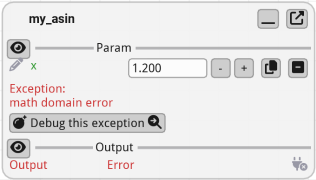
Adding Attributes with a Decorator
It is possible to customize the GUI for parameters using function attributes: below, we set the range for x. As a consequence it will be displayed with a slider widget with a range from -1 to 1.
import fiatlight as fl

# Use the `with_fiat_attributes` decorator to set custom fiat attributes for the function:
# Here, we set the range of the x parameter.
# Important: note the double underscore ("_") after the parameter name!
@fl.with_fiat_attributes(x__range=(-1, 1))
def my_asin(x: float = 0.5) -> float:
    import math
    return math.asin(x)


fl.run(my_asin, app_name="Range restriction")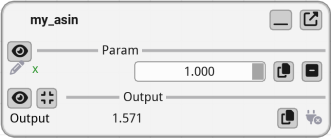
Adding Attributes Manually
If you do not wish or cannot modify the function definition, you can use the add_fiat_attributes function to add attributes to the function.
This way, your function stays unmodified, and you can specify the attributes only when creating its GUI.
import fiatlight as fl

def my_asin(x: float = 0.5) -> float:
    import math
    return math.asin(x)

# Important: note the double underscore ("_") after the parameter name!
fl.add_fiat_attributes(my_asin, x__range=(-1, 1))
fl.run(my_asin, app_name="Range restriction")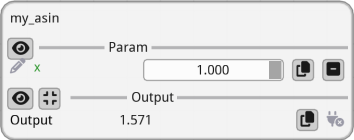
Listing Available Fiat Attributes
To customize the GUI for function parameters or outputs, you can list the available fiat attributes for a specific type using the Fiatlight command line utility.
Use the command fiatlight gui int in a terminal (or console) to list available fiat attributes for the int type. For other types, replace int with the type you are interested in.
For more information, see “Fiatlight command line utility”.
Below is an extract of the output of fiatlight gui int:
GUI type: int
==============
A highly customizable int widget.
Available fiat attributes for IntWithGui:
+--------------------+-----------------+-----------+-------------------------------------------+
| Name               | Type            | Default   | Explanation                               |
+====================+=================+===========+===========================================+
| range              | tuple[int, int] | (0, 10)   | Range of the integer                      |
+--------------------+-----------------+-----------+-------------------------------------------+
| edit_type          | str             | input     | Type of the edit widget. Possible values: |
|                    |                 |           | slider, input, drag, knob,                |
|                    |                 |           | slider_and_minus_plus                     |
+--------------------+-----------------+-----------+-------------------------------------------+
| format             | str             | %d        | Format string for the value               |
+--------------------+-----------------+-----------+-------------------------------------------+
| ...                | ...             |           |                                           |

Available fiat attributes for AnyDataWithGui Generic attributes:
--------------------------------------------------------------------------------
+-------------+--------+---------------------+------------------------------------------------+
| Name        | Type   | Default             | Explanation                                    |
+=============+========+=====================+================================================+
| label       | str    |                     | A label for the parameter. If empty, the       |
|             |        |                     | function parameter name is used                |
+-------------+--------+---------------------+------------------------------------------------+
| validator   | object | None                | Function to validate a parameter value: should |
|             |        |                     | raise a ValueError if invalid, or return the   |
|             |        |                     | value (possibly modified)                      |
+-------------+--------+---------------------+------------------------------------------------+
| ...         | ...    |                     |                                                |
Example: Fiat Attributes in Action
In the example below, we customize the GUI for the function interactive_histogram by setting fiat attributes for the number of data points, the number of bars, the mean, and the standard deviation.
import fiatlight
import matplotlib; matplotlib.use('Agg')  # Required to display the figure in the GUI
from matplotlib.figure import Figure

@fiatlight.with_fiat_attributes(
    # Label displayed as the title of the function node
    label="Interactive histogram",

    # Edit the number of data points with a logarithmic slider
    # Note: by default, you can ctrl+click on a slider to input a value directly,
    #       this is disabled here with nb_data__slider_no_input
    nb_data__label="Nb data",
    nb_data__edit_type="slider",
    nb_data__range=(100, 1_000_000),
    nb_data__slider_logarithmic=True,
    nb_data__slider_no_input=True,

    # Edit the number of bars with a knob
    n_bars__label="Number of bars",
    n_bars__edit_type="drag",
    n_bars__range=(1, 300),

    # Edit the average with a slider for a float value with any range
    # (the slider range will adapt interactively, when dragging far to the left or to the right)
    average__label="Mean",
    average__edit_type="slider_float_any_range",
    average__range=(-5, 5),

    # Edit the standard deviation with a drag
    sigma__label="Std deviation",
    sigma__edit_type="knob",
    sigma__range=(0.1, 5),

)
def interactive_histogram(
    nb_data: int = 4000, n_bars: int = 50, sigma: float = 1, average: float = 500
) -> Figure:
    '''Generate an interactive histogram with adjustable number of bars, mean, and standard deviation.'''
    import numpy as np
    import matplotlib.pyplot as plt

    data = np.random.normal(loc=average, scale=sigma, size=nb_data)
    bins = np.linspace(np.min(data), np.max(data), n_bars)
    fig, ax = plt.subplots()
    ax.hist(data, bins=bins, color="blue", alpha=0.7)
    return fig

fiatlight.run(interactive_histogram, app_name="Fiat attributes")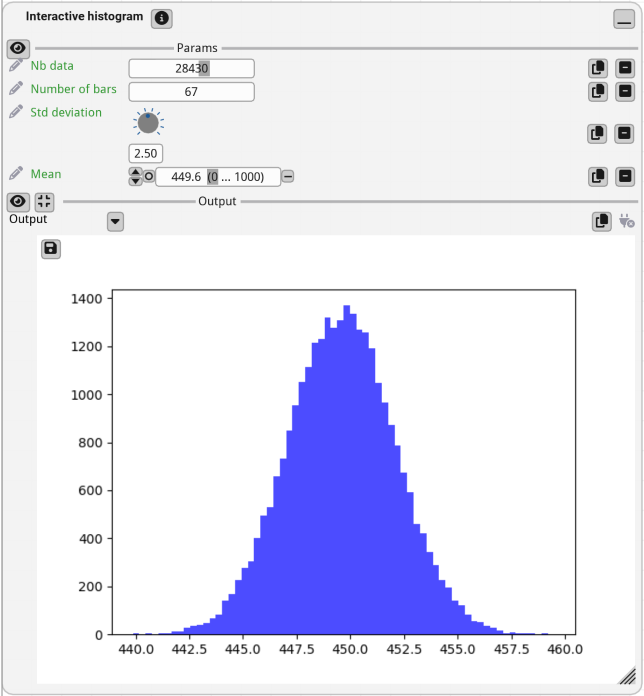
Labelling Outputs
Outputs can be customized just like parameters, using the return__ prefix instead of a parameter name. Note the double underscore between return and the attribute name.
For a function with a single output, use return__label:
import fiatlight as fl

@fl.with_fiat_attributes(return__label="Celsius")
def fahrenheit_to_celsius(fahrenheit: float = 0) -> float:
    return (fahrenheit - 32) * 5 / 9
When a function returns a tuple[...], Fiatlight splits it into one output pin per element (by default labelled “Output 1”, “Output 2”, ...). You can give each pin a custom name by indexing into the return: the first output uses return__ (no index), and subsequent outputs use return_1__, return_2__, ...
import fiatlight as fl

@fl.with_fiat_attributes(
    return__label="sum",       # first output
    return_1__label="product", # second output
)
def calc(a: int, b: int) -> tuple[int, int]:
    return a + b, a * b

fl.run(calc, app_name="Named outputs")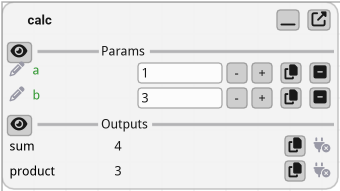
The same return_N__ prefix works for any output-side fiat attribute (tooltip, range, edit_type, ...), not just label.
Named Outputs with NamedTuple
When all you need is to name the outputs (as opposed to also tweaking widget options), a typed NamedTuple return type is usually clearer than return_N__label decorators. Fiatlight detects typing.NamedTuple subclasses, splits them into one output pin per field, and uses the field names as labels automatically:
from typing import NamedTuple
import fiatlight as fl

class CalcResult(NamedTuple):
    sum: int
    product: int

def calc(a: int, b: int) -> CalcResult:
    return CalcResult(sum=a + b, product=a * b)

fl.run(calc, app_name="NamedTuple outputs")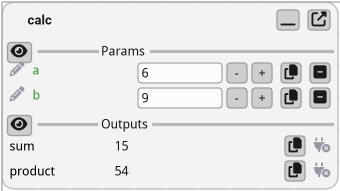
This produces two output pins labelled “sum” and “product” — equivalent to the return__label / return_1__label example above, but the names live with the type rather than next to the function.
Notes:
Only
typing.NamedTupleis supported (the typed form), not the legacy untypedcollections.namedtuple— Fiatlight needs the field annotations to build per-field GUIs.Field names are used as the default labels. They can still be overridden with
return__label/return_N__labelif needed.The same detection applies wherever the type appears (parameters, nested values), not just on the return type.
If you need to combine field naming with per-field widget options (e.g. a range on the
sumfield), you can still use thereturn_N__prefix in addition to theNamedTuple.
pydantic.BaseModel and dataclasses are not split into multiple outputs — they appear as a single structured output pin with an editable form. Use a tuple or a NamedTuple when you want one pin per field.